
I Built a More Natural SSH Terminal Management Tool: Termark
If you work on backend systems, operations, or manage servers yourself, you are probably familiar with this kind of workflow:
Open a terminal and connect to a server;
Open another tool to transfer files;
Open notes to find a command;
Look up a machine's account, key, or jump host configuration;
Need to run the same command across several machines, so you start copy-pasting into window after window.
Each task is easy on its own, but repeating them day after day makes the work feel fragmented.
Termark was built to solve that fragmentation.
It is a desktop SSH terminal management tool. I wanted it to be more than a terminal that can connect to servers. The goal was to put asset management, terminal sessions, file transfer, port forwarding, command snippets, session history, sync, and AI assistance into one workspace.
Why I made Termark
I use servers a lot myself, and the common workflow is simple, but different tools tend to split it apart.
For example, when troubleshooting a production issue, you may need to connect through a jump host, enter the target machine, check logs, inspect processes, inspect ports, pull configuration files, and download logs. If you also need to deal with multiple machines, the process gets even more annoying.
The terminal only solves the "connect" part. A lot of real work happens after the connection is established.
So Termark's approach is: first manage the server assets well, then provide the common operations around those assets.
A machine should not just be an IP address. It may belong to an environment, have its own credentials, proxy, jump host, startup command, file transfer entry point, historical sessions, and commonly used commands. Termark tries to keep those pieces together.
Start with the asset tree
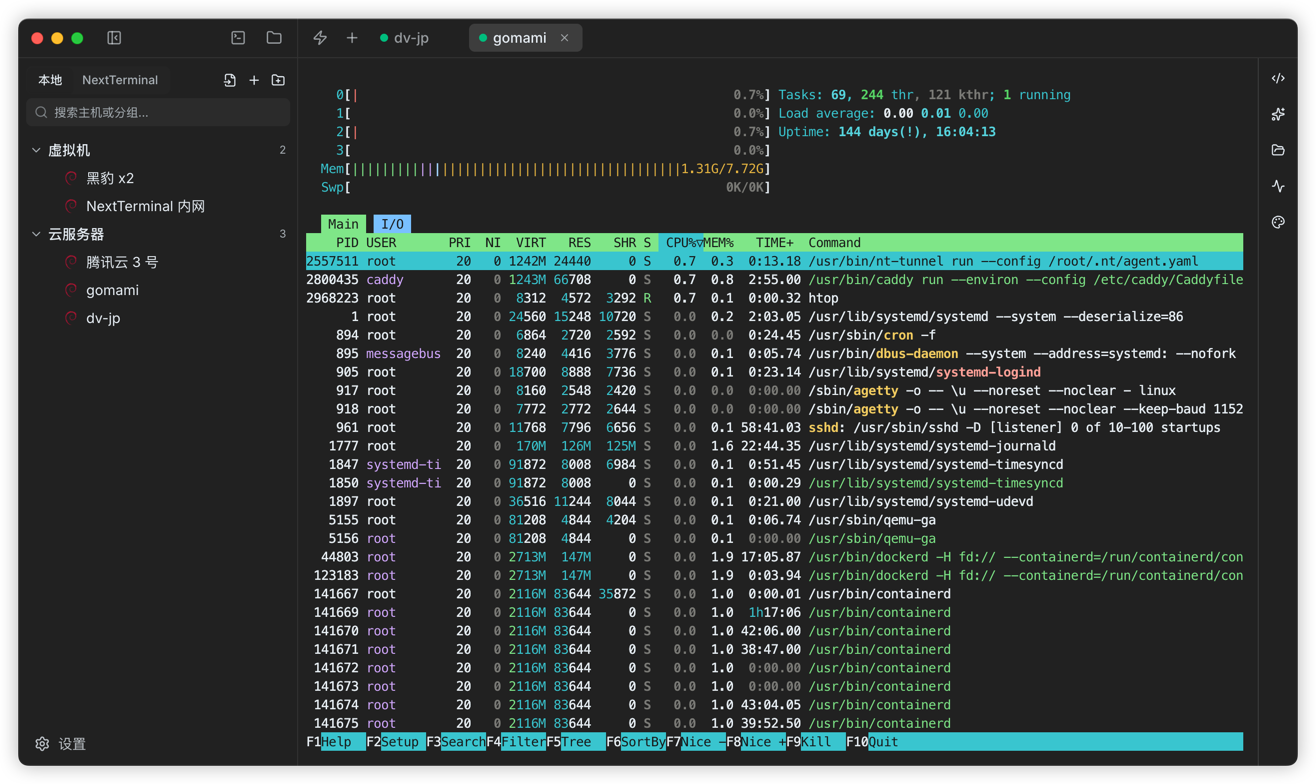
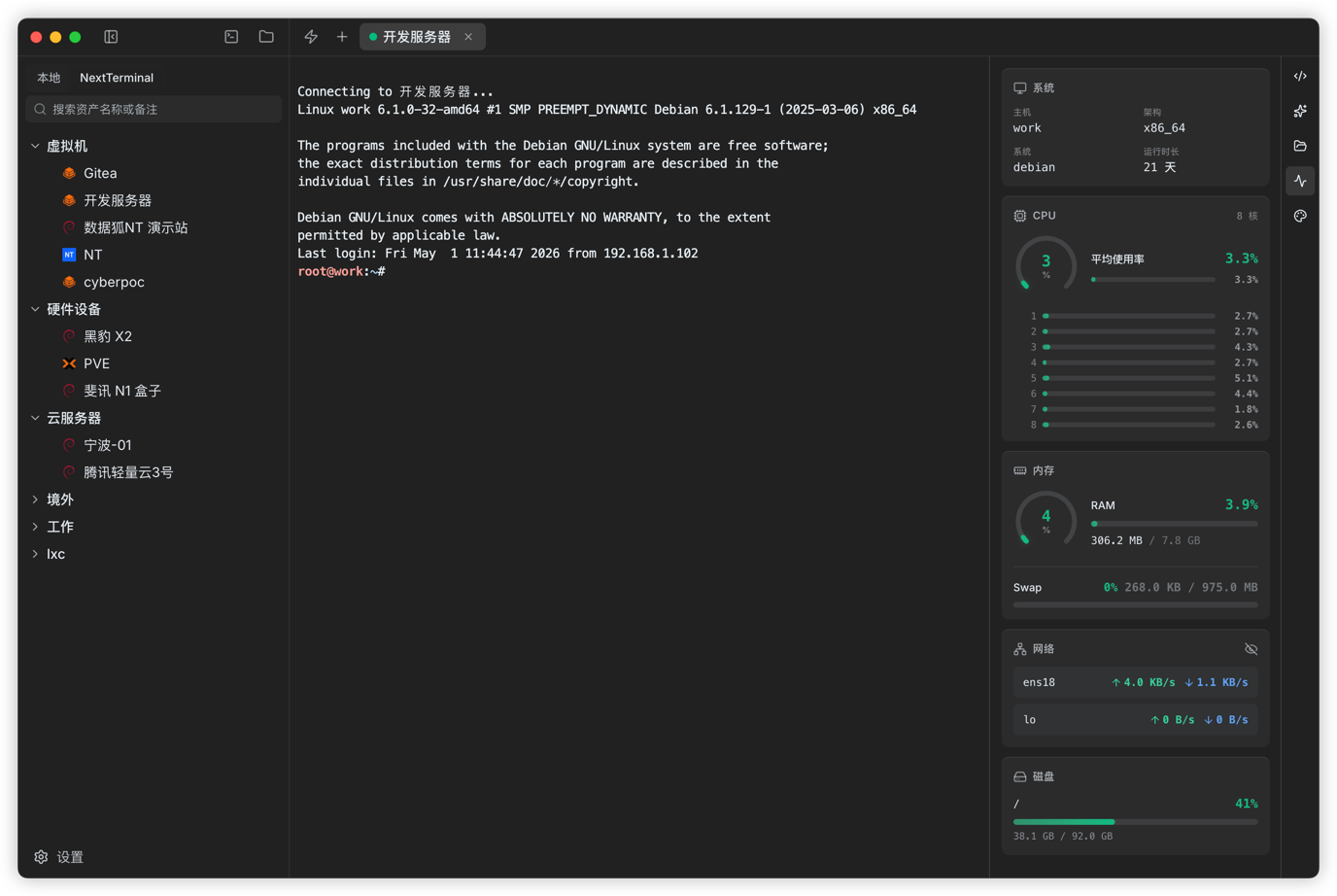
When Termark opens, the left side is an asset tree.
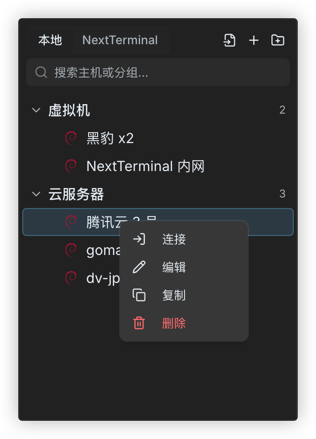
You can group servers however you like: production, staging, databases, gateways, customer projects, home NAS, whatever is convenient. Groups support multiple levels, search, and drag-and-drop ordering.
If you already have ~/.ssh/config, you can import it directly without entering everything again. If you need to migrate in bulk, you can also import from CSV.
Termark supports not only SSH hosts, but also:
- SSH
- Telnet
- Serial
- Local terminal
- NextTerminal assets
What I care about here is a unified entry point. Some old devices still use Telnet, some field devices rely on serial connections, and some teams already use NextTerminal. These may not be ideal, but they are real, and the tool should handle them.
The terminal should feel smooth, not just usable
The terminal is built on xterm.js. Connection and I/O are only the first layer. The details you use every day are what matter.
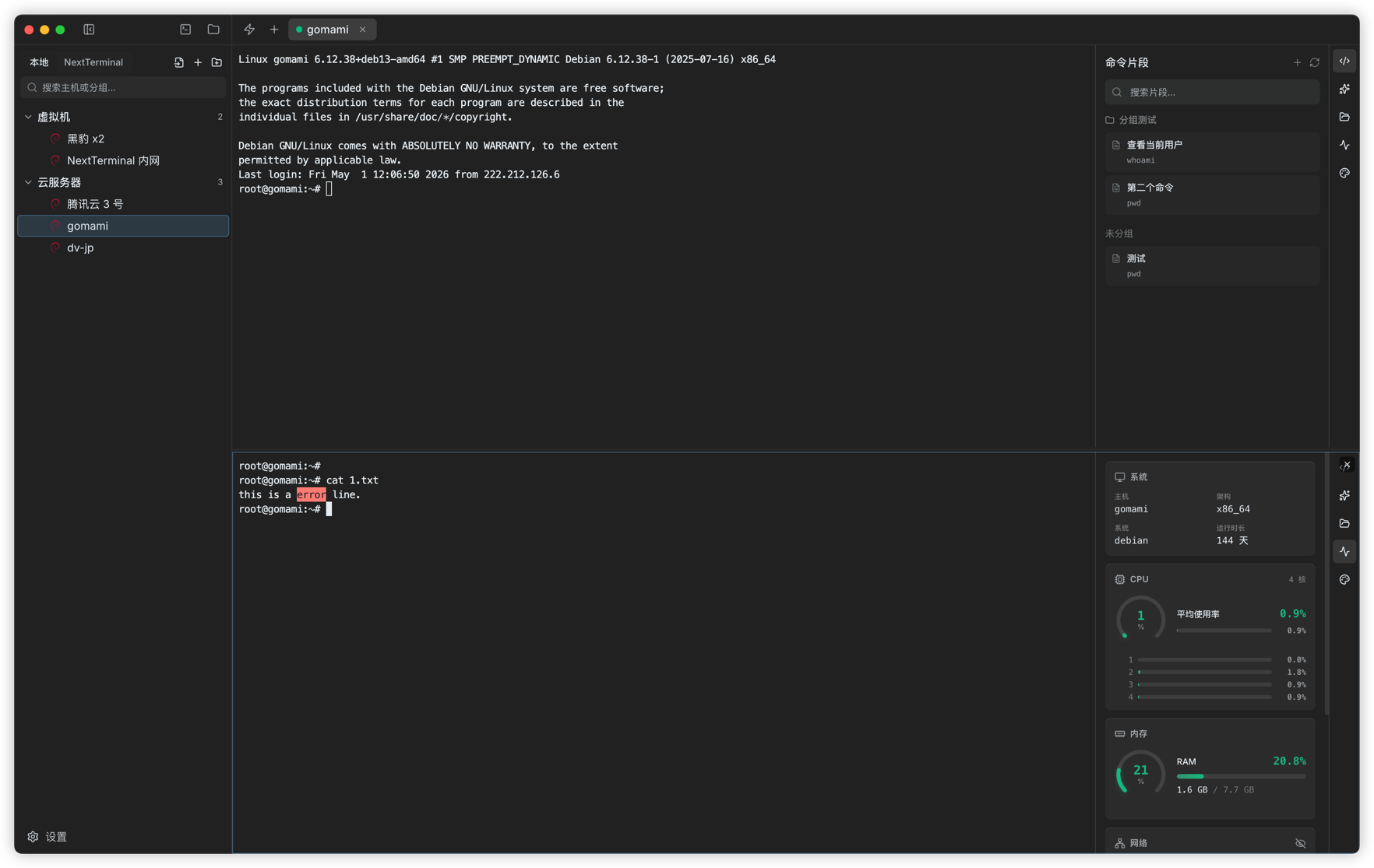
Termark supports tabs, split panes, search, session cloning, auto reconnect, copy-on-select, right-click paste, themes, fonts, shortcuts, and keyword highlighting.
These are not especially novel features, but they need to be stable in a terminal tool. In real use, fewer switches, fewer retypes, and fewer searches for commands make a big difference.
The feature I use most is command snippets.
Docker cleanup, checking systemd service status, looking at recent error logs, checking disk usage, and restarting a service are not commands you should type from scratch every time. They also should not live in chat history or note apps. Save them as snippets and they are ready when you open the terminal.
Keyword highlighting is also very practical. You can highlight words like ERROR, WARN, and failed. When reading logs, you do not need to scan line by line; your eyes get to the important part faster.
Repeating the same command across multiple machines should be easier
Some tasks are naturally batch-oriented.
Checking disk space across a group of machines, confirming whether a service is up, verifying that versions match after a release, or checking results in bulk are all examples.
The usual way is to open many windows and paste commands one by one. It works, but it is mechanical and easy to miss things.
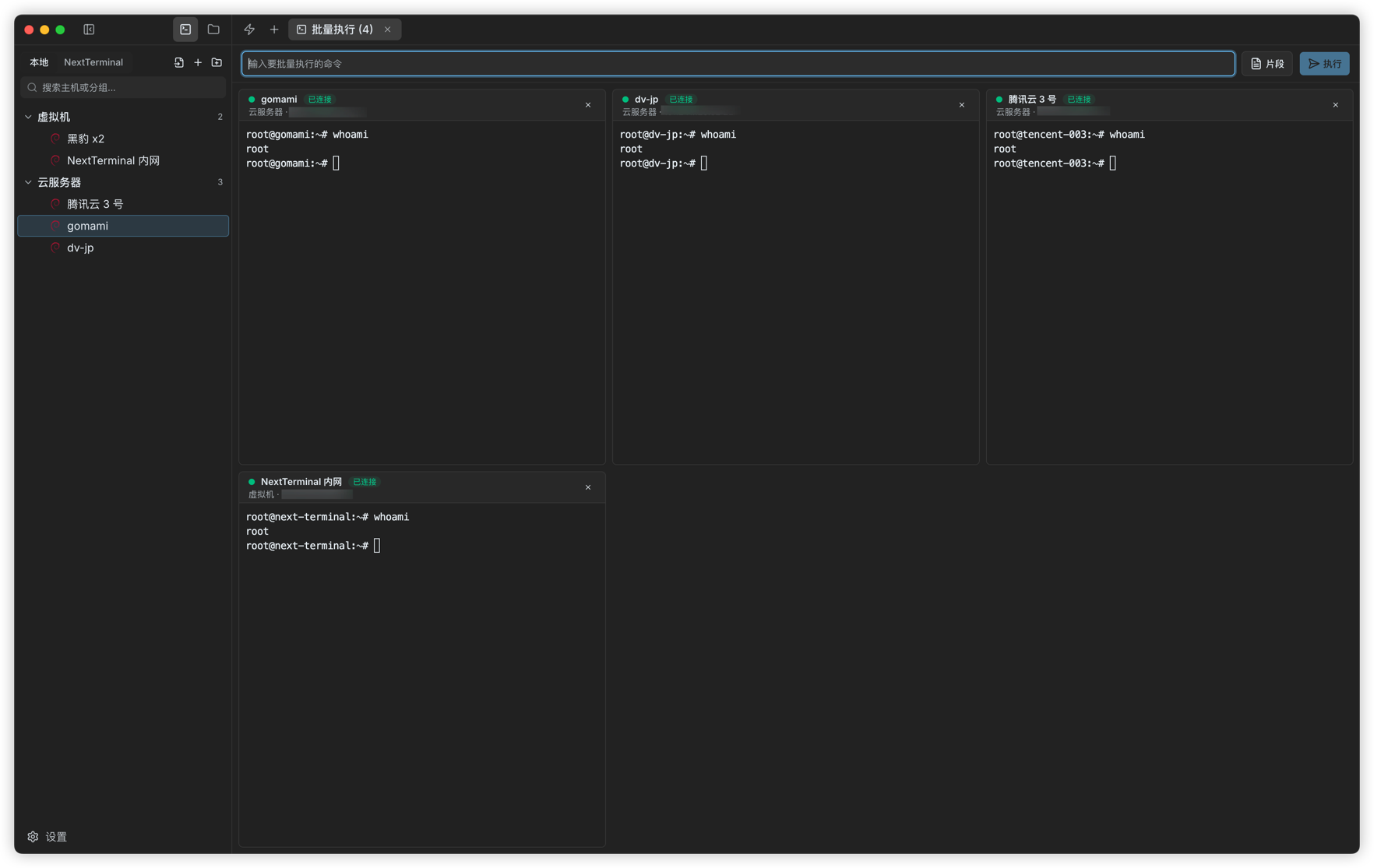
In Termark, you can select multiple assets and open the batch execution page. Each machine gets its own terminal panel, and you type the command once at the top to send it to all targets.
The output does not get mixed together. Each machine stays separate, so you can dispatch once and inspect individually.
If you already saved common commands as snippets, you can use those directly in batch execution too.
Put SFTP next to the terminal
File transfer is another task that often gets split into a separate tool.
Most of the time, we are not trying to "manage files" as a standalone task. We just need to upload a config, download a log, tweak a small file, or inspect a directory during troubleshooting.
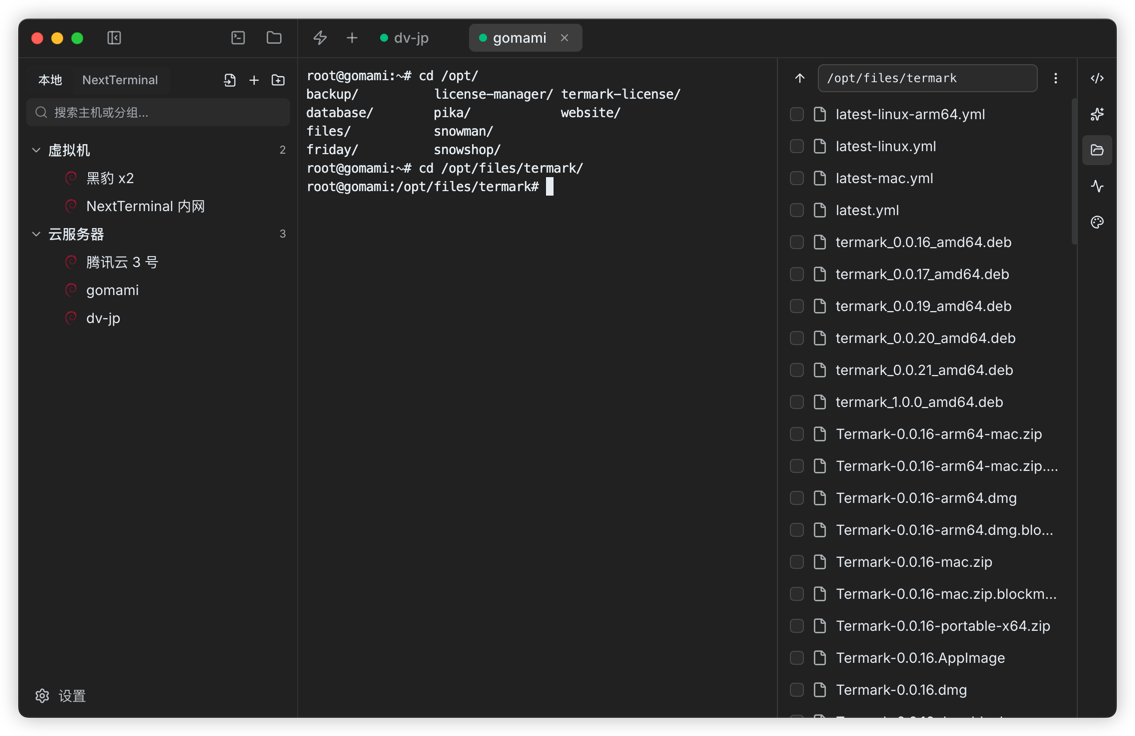
That is why Termark includes a built-in SFTP workspace. It uses a dual-panel layout, with local on the left and remote on the right. It supports upload, download, drag-and-drop, creating folders, creating files, renaming, deleting, changing permissions, batch downloads, batch deletes, and transfer task inspection.
Inside an SSH terminal, you can also open the SFTP tab for the current session. With directory following enabled, switching directories in the terminal keeps SFTP aligned with the current working directory.
The core idea is simple: do not switch to another tool just to transfer a file.
Port forwarding can be saved as a rule
SSH port forwarding is useful, but the command is hard to remember, especially once you have several forwards and forget which one maps to which service.
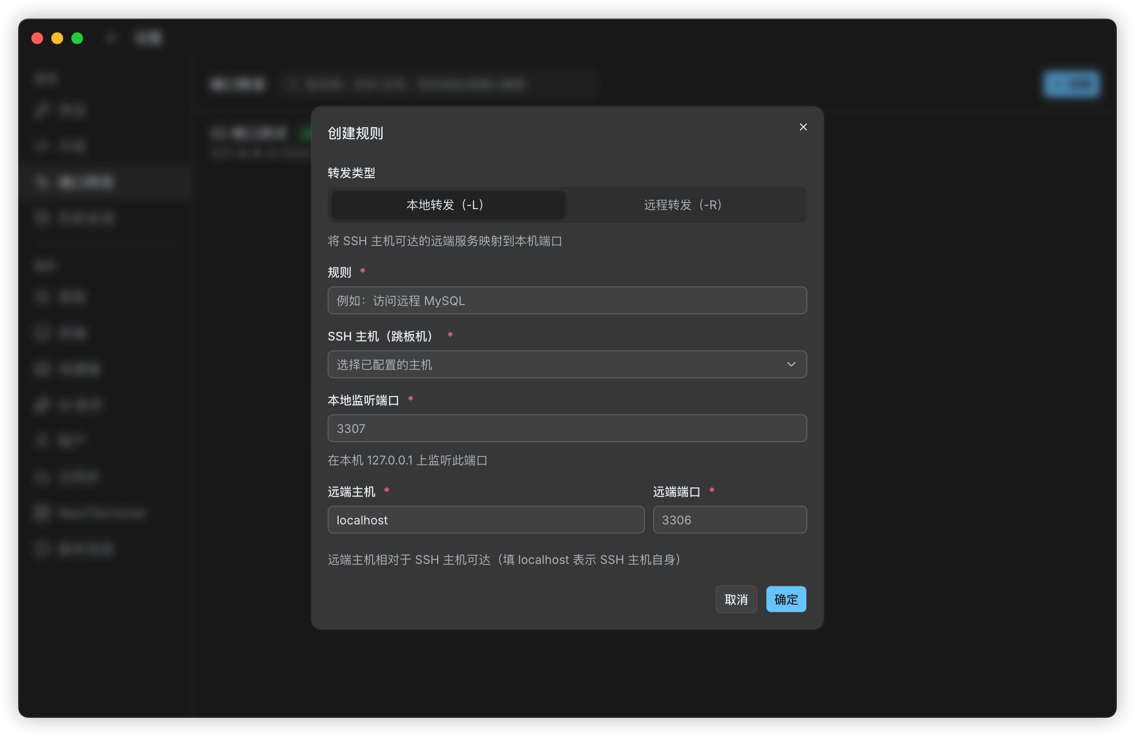
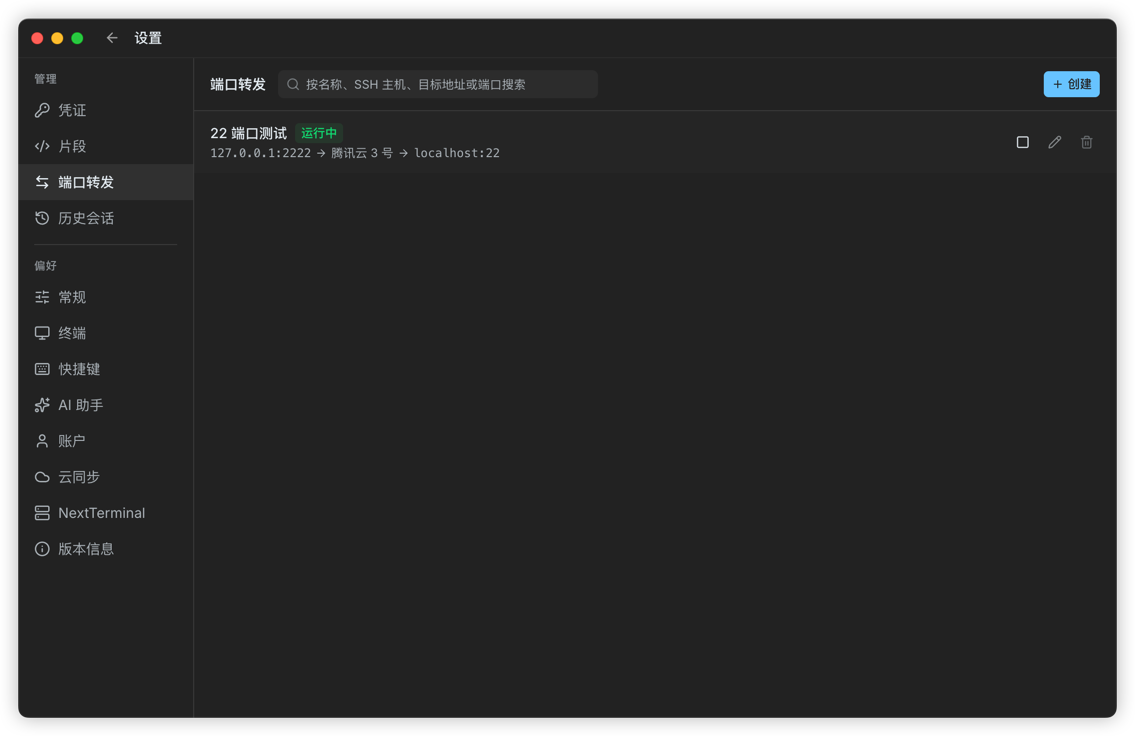
Termark supports local and remote forwarding, and you can save the rules.
Examples:
- Map a remote MySQL instance to a local port
- Reach an internal service through a jump host
- Temporarily expose a local debugging service to a remote machine
- Debug an API that can only be reached from inside the server network
Once a rule is saved, you can start it with a click and stop it when you no longer need it. Compared with rebuilding ssh -L or ssh -R every time, it is much more practical.
Keep credentials, jump hosts, and proxies together
The annoying part of server connections is often not the IP address. It is the surrounding setup.
What is the account? Password or private key? Does the key have a passphrase? Do you need a proxy? Do you need a jump host? How many hops? Should a startup command run after login? Does the old machine need special encoding?
If those details are scattered around, they will eventually become messy.
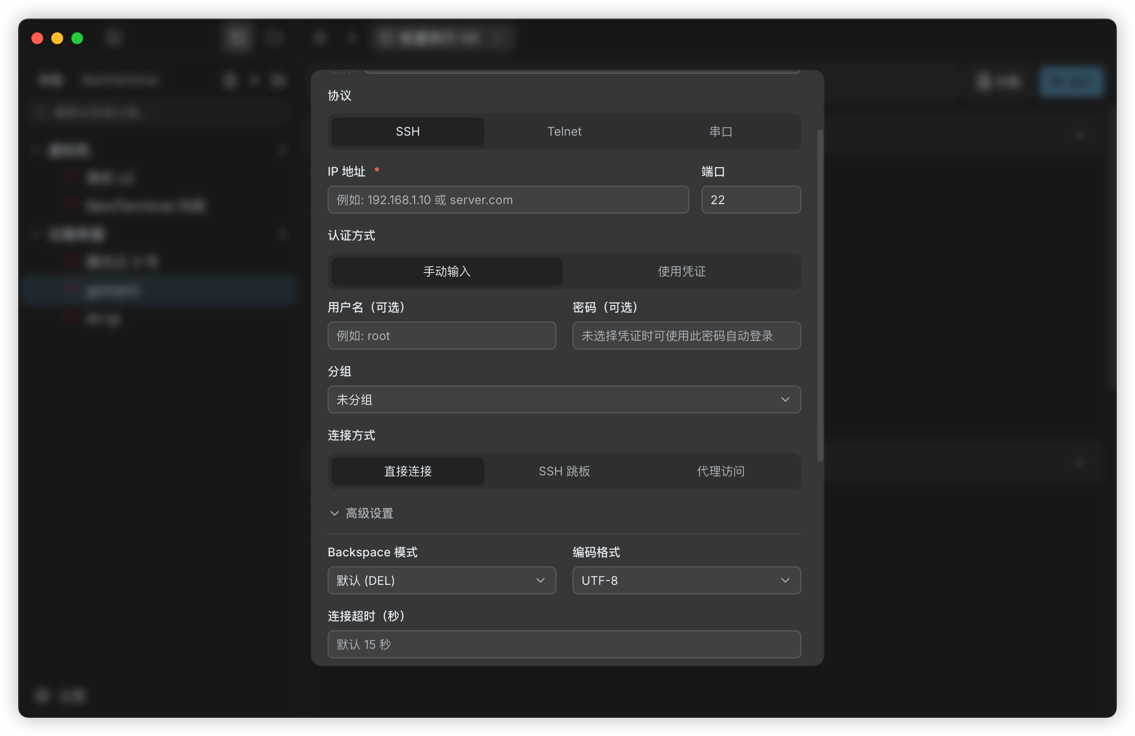
Termark includes credential management. You can save password credentials and private key credentials, and you can also generate key pairs, copy the public key, or install the key with a command. Hosts can bind directly to credentials so you do not need to re-enter them.
Connection settings also include direct SSH, multi-hop jump hosts, HTTP proxy, Socks5 proxy, connection timeout, environment variables, Backspace mode, encoding settings, and SFTP sudo elevation.
For local storage, sensitive fields such as passwords, private keys, key passphrases, and proxy passwords are encrypted before being written to disk. They are not stored in plain text.
Session history: some output is worth keeping
When troubleshooting, there is often a moment when the terminal shows something important, and later you cannot find it again.
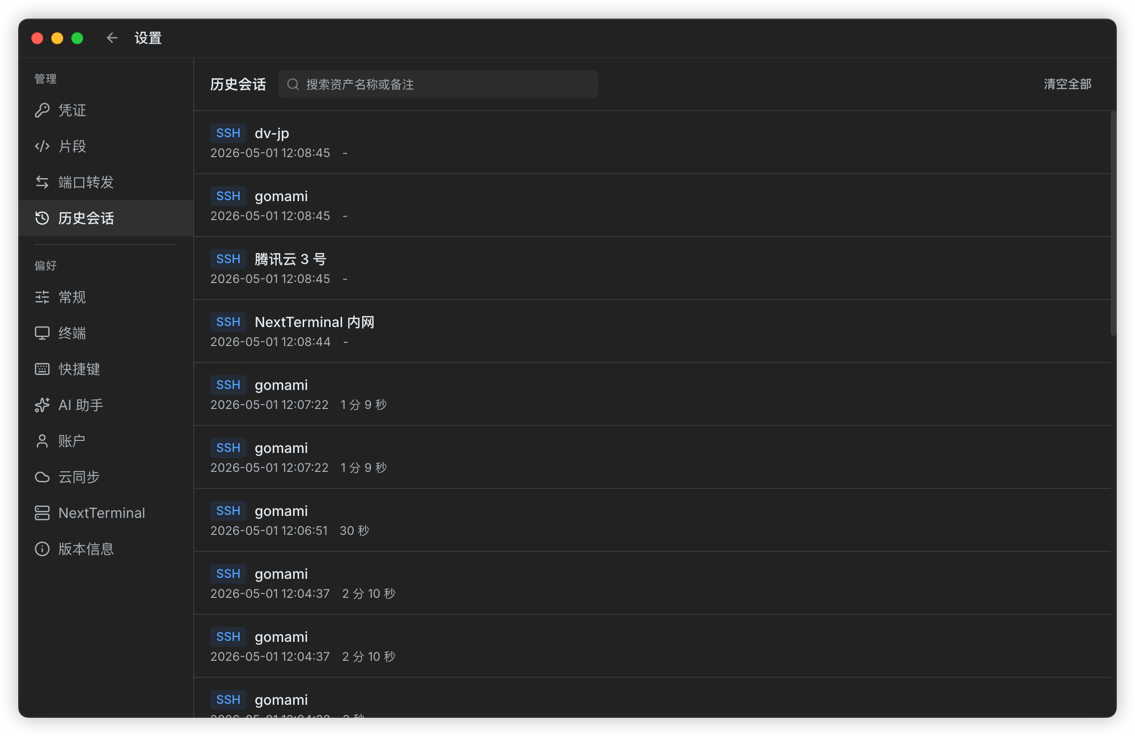
Termark supports session recording. When enabled, terminal output can be saved into historical sessions for later replay, and you can add notes and search them later.
It is useful for recording:
- A troubleshooting session
- A deployment output
- A key configuration change
- A postmortem for a mistake
- The historical connection record for a machine
This is not meant to be a heavy auditing system. It is more like a lightweight record for individuals and small teams. Being able to replay what happened is often already valuable.
AI assistant: it can help, but it should not make the decisions
Termark also includes an AI assistant.
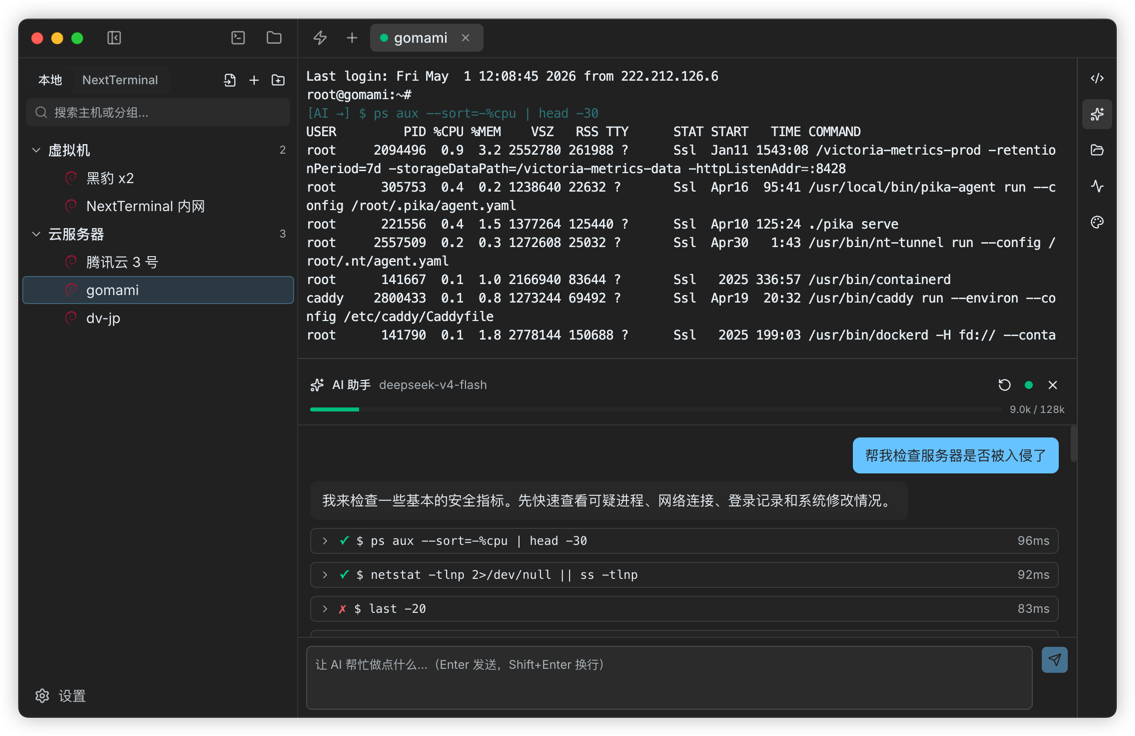
I do not want to frame it as "autonomous ops". It is more like an assistant standing next to the SSH terminal: it can see the latest terminal output, analyze the problem from your description, and execute commands after you confirm them.
For example, you can ask it to explain an error message, check service status, analyze port usage, or decide what to inspect next based on the current output.
The AI assistant supports OpenAI-compatible interfaces. You can configure your own API endpoint, key, and model, including services such as OpenAI, DeepSeek, Qwen, Kimi, Ollama, and other compatible providers.
Command execution is handled conservatively.
Termark supports two confirmation policies: confirm only dangerous commands, or confirm every command. High-risk commands such as rm -rf /, mkfs, dd writes, restarts, shutdowns, and firewall wipes are recognized and require confirmation.
My view is simple: AI can improve efficiency, but control of the server must remain with the user.
Multi-device sync, but the server cannot read plaintext
If you switch between a work laptop, a home machine, or several development machines, unsynced assets and snippets become a real pain.
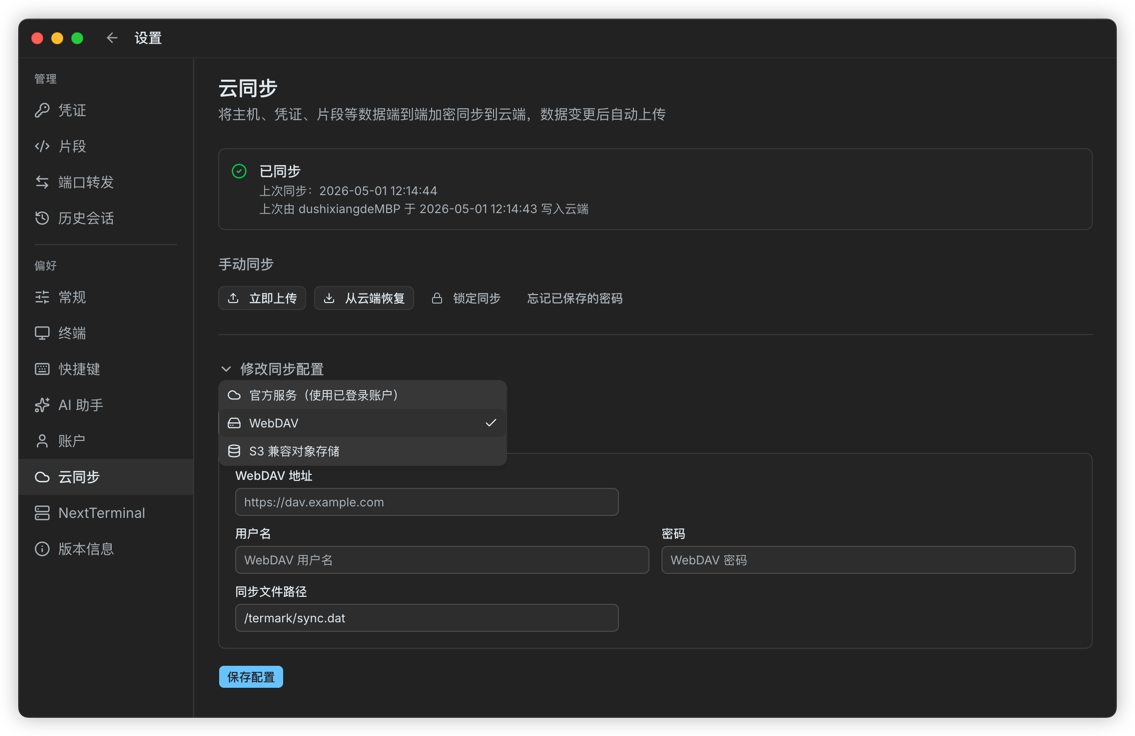
Termark supports cloud sync for hosts, credentials, snippets, and configuration. Sync options include the official service, WebDAV, and S3-compatible object storage.
The important part is the security model: sync data is encrypted on the client before upload. The sync password is never sent to the server, and the server only receives ciphertext. In other words, the server stores data, but it cannot decrypt your server information.
When multiple devices edit at the same time, Termark performs version conflict detection. If a conflict is found, it asks whether you want to restore from the cloud or overwrite the cloud data locally instead of silently replacing anything.
If you already use NextTerminal
Termark also integrates with NextTerminal.
During setup, authorization happens in the browser, so you do not need to create an API token manually. After authorization, you can load SSH assets from NextTerminal into Termark's asset tree.
That means you do not have to choose between your existing asset system and a local desktop tool. Assets can stay managed by NextTerminal, while daily connections, SFTP, batch execution, command snippets, and AI assistance happen in Termark.
Who it is for
If you only log in to a server occasionally, Termark may not be a must-have. A system terminal and one SSH command are probably enough.
But if you often deal with these situations, Termark is more useful:
- You manage a lot of servers
- You often need jump hosts or proxies
- You have many common commands and do not want to retype them
- You frequently upload and download files
- You need to check multiple machines in bulk
- You want to keep some session history
- You want AI next to the real SSH session for troubleshooting
- You want to sync assets and configuration across multiple computers
It is not trying to replace every tool. It is trying to bring the most common remote-work workflow into one desktop app.
Less window switching, less repeated setup, less copy and paste.
That is the problem Termark is trying to solve right now.
Final note
Termark is still being iterated on.
If you often work with servers, feel free to try it, and feel free to share your real usage scenarios. Many features were not invented out of thin air; they grew out of daily work, one piece at a time.
Website: https://www.termark.app